
Member Details Tab Overview - Messages
The Messages tab of the Member Details screen displays a list of the Message Activities (sent, opened, clicked, etc.) that occurred as a result of Messages sent to this Member.
Note: This feature is intended only for clients using Loyalty's legacy email platform.
To search for a Message Activity:
-
Select Members from the top navigation bar, then select Members > Members from the side navigation menu. The Members screen is displayed.
-
On the Members screen, search for and select the desired Member (see Search for a Member for more information). The Member Details screen is displayed with the Metrics tab selected by default.
-
Select the Messages tab.
-
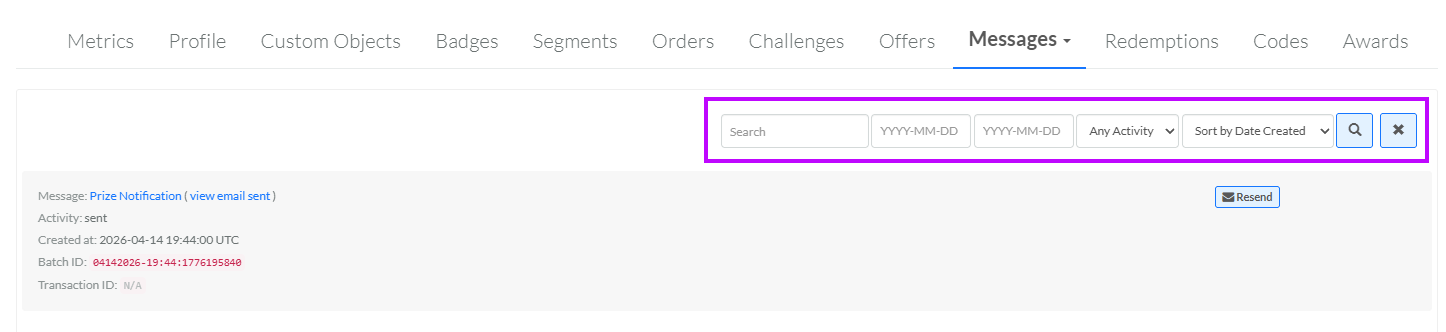
Optionally, in the Search field, enter the desired text string.
-
Optionally, use the two date fields to define a range for "created date."
-
Optionally, from the Activity drop-down menu, select a Message Activity type. The default is Any Activity.
-
Click the Search icon. The screen is refreshed to show only the Activities that meet your search criteria. If you entered multiple search criteria, the Activity must meet ALL criteria.
-
To sort the search results, select the desired sort order from the Sort By drop-down menu. The default sort order is by: Created Date.
-
Optionally, to remove all search criteria and revert to the default criteria, click the Clear icon.
Within the search results, click the Message's name to preview the Message content in a new browser tab or window.
From this tab, you can resend a Message to a Member. For more information on this process, see Resend a Message.
